What’s New in the September 2026 Release
The September 2026 release of CorelDRAW Go introduces new ways to create with AI, makes your favorite fonts available wherever you work, and simplifies the experience of managing fonts that aren’t available in a document.
Do more with AI
On the new Vector tab in the AI Generate panel, you can generate scalable, editable vector graphics from text prompts. You can optionally add reference content — such as a logo, illustration, product design, or photo — to guide the composition and visual direction. The AI uses your prompt as the foundation while drawing inspiration from the reference to create vector output that you can refine, resize, and customize. You can choose from three AI models tailored for vector artwork, each with its own characteristics and style.
The new Quick AI Generate workflow offers a streamlined experience built around a simplified interface with task-based tiles and a focused set of controls. Accessible from the AI Generate button on Home screen and the menu (Menu > Quick AI Generate), it’s ideal for exploring ideas, creating first drafts, or generating one-off visuals without setting advanced options.
Quick AI Generate lets you create a vector graphic, create an image, or edit an image. After selecting one of those tasks, just enter a prompt, and generate content right away. Quick AI Generate automatically applies settings, so you can create output faster with fewer setup steps.
Use your fonts anywhere
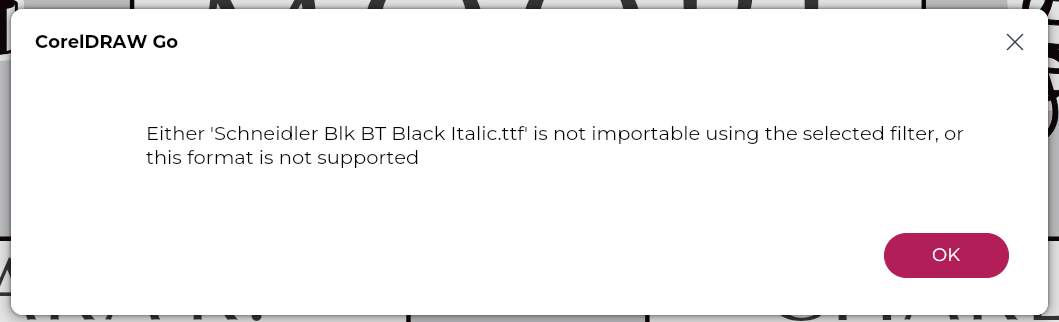
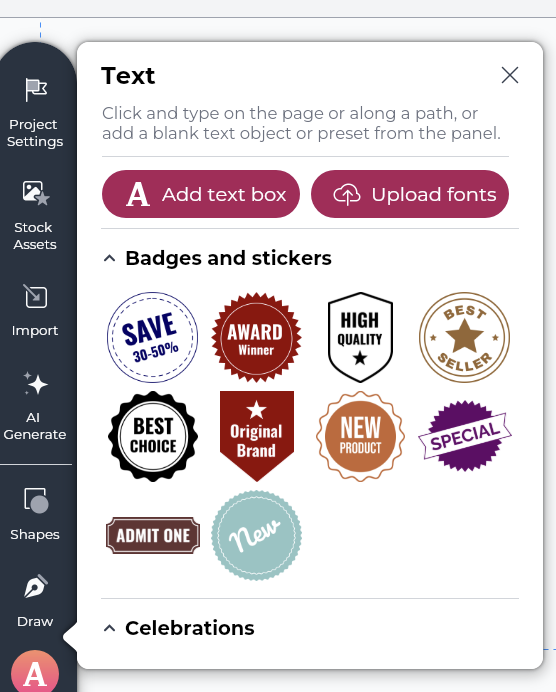
You can now upload fonts to cloud storage, giving you access to the fonts that matter most to you wherever you use CorelDRAW Go. This makes it easier to maintain a consistent look across your projects without needing to install the same fonts separately on every device.
Upload TrueType (TTF) or OpenType (OTF) fonts from your system, with 1000 MB of font storage available in Corel Cloud. In the Font list box in the Properties panel, you can view all uploaded fonts or use a filter to display only your uploaded fonts. When you need to free up space, you can delete uploaded fonts at any time.
Manage unavailable fonts
The dialog for managing fonts that aren’t available in a document has been streamlined for greater clarity and ease of use.
Formerly the Substitute Missing or Unsupported Fonts dialog box, it now appears as Fonts Not Available, with an updated design that makes it easier to review and choose font replacement options.
Work more efficiently
Some keyboard shortcuts in CorelDRAW Go have been updated to align with industry standards. Now you can duplicate an object by holding down Alt as you drag it, and holding down Ctrl disables live guides. In addition, now you can select an object by dragging over just a part of it. And when you’re working on a complex project, you can pinpoint object selection by holding down the Alt key and selecting the entire object.
Edit raster images
After removing the background from a raster image (Properties panel > Edit image > Remove background), the bounding box now resizes as expected to the reduced sized of the bitmap object.
Work faster
Files saved to Corel Cloud open faster than ever.