Edit text
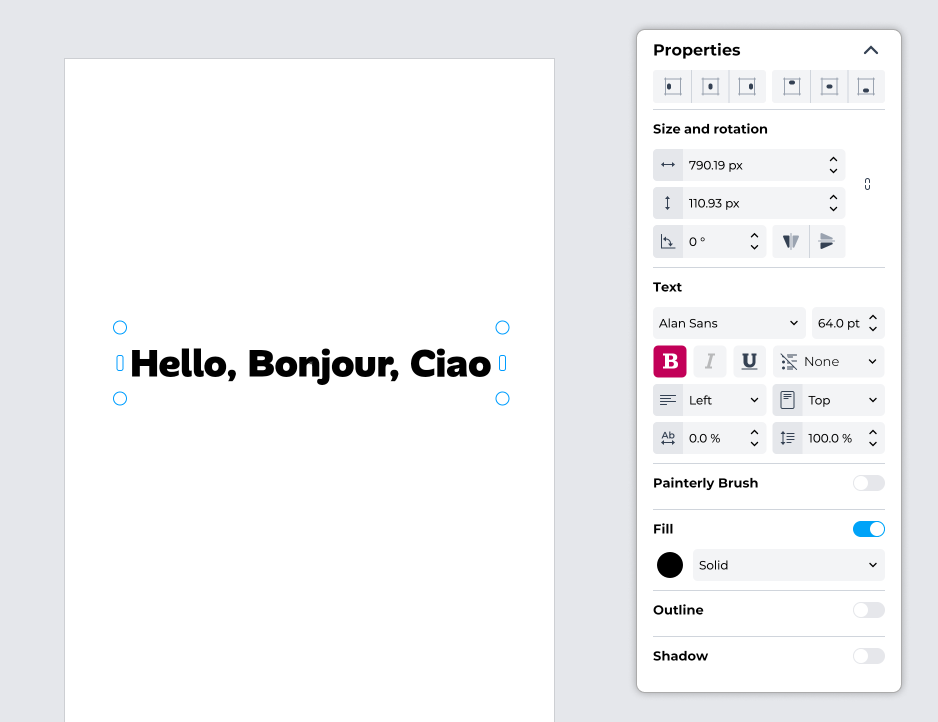
After adding a text box or preset to your project, you can customize the text in the Properties panel. You can also manipulate it on the project page.
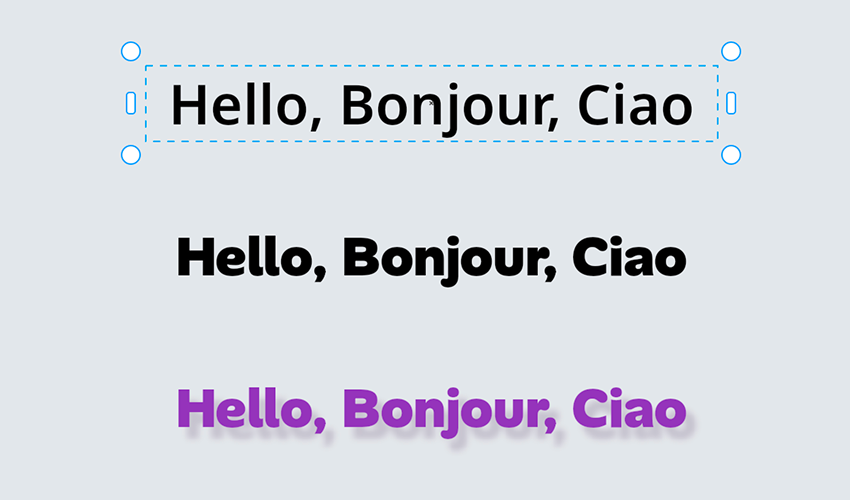
 Select text for editing
- Do any of the following:
- To select text in a text box, double-click the text.
- To select text in a text preset, first select the text in the Objects panel, and then double-click the text object in the project space.
- To select text on a path, double-click the text.
- To select specific characters, double-click the text object, then drag across the text to highlight the characters.
Choose a font
- In the toolbox, select the Text tool
 .
. - In the Properties panel, choose a font from the Font list box.
You can also select a font from the Project fonts list in the Text panel, which includes fonts used in your project.
To change the font in an existing text object, select it and choose a font from the Font list box or Project fonts list. If the text object is part of a text preset, select the text in the Objects panel.
To change the font of text within a text box or preset, first select the text.
Change the text color
- In the toolbox, select the Text tool .
- In the Properties panel, open the Fill color picker and select a color.
To change the font color of an existing text object, select it and choose a color in the Fill color picker. If the text object is part of a text preset, select the text in the Objects panel.
To apply a color to text within a text box or preset, first select the text.
Adjust the font size
- In the toolbox, select the Text tool .
- In the Properties panel, choose an option from the Font size box.
To change the font size of an existing text object, select it and choose an option from the Font size box. If the text object is part of a text preset, select the text in the Objects panel.
To change the size of specific text within a text box, first select the text.