Explore the AI Generate panel
You can use AI to spark new ideas, generate design variations, and bring your concepts to life quickly. Generating an image requires AI credits. For more information about using AI, see our Frequently Asked Questions (FAQ). To use the Generative AI features, you must accept the Corel Generative AI policy.
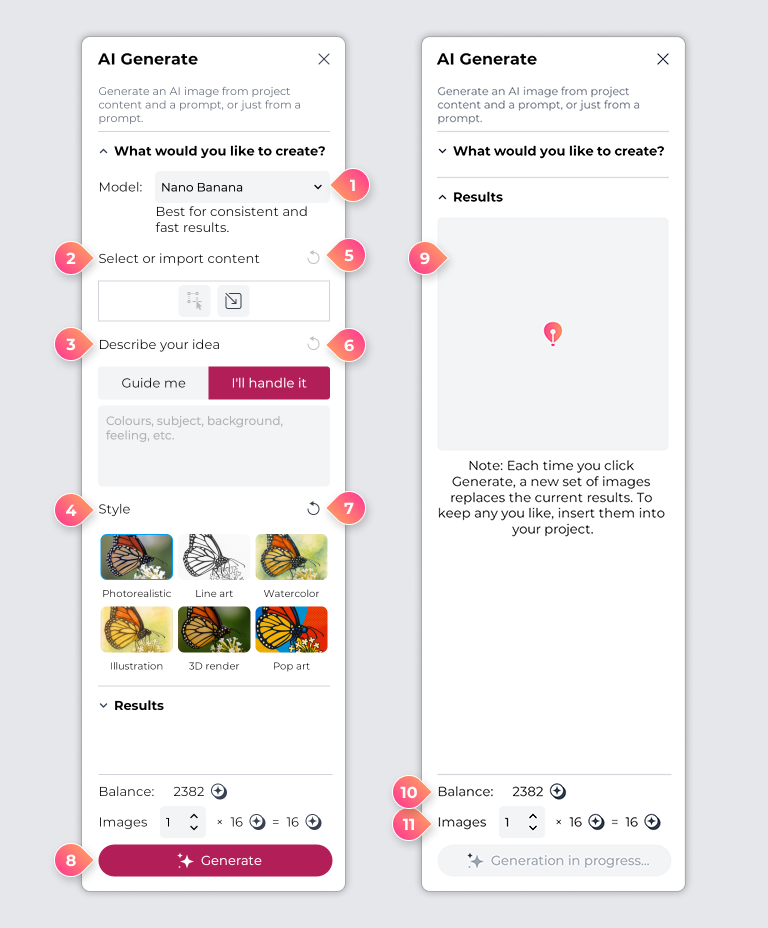
The AI Generate panel provides a streamlined workspace for creating and transforming images with AI. The image below illustrates the main components of the AI Generate panel.
| Part | Description |
|---|---|
| 1 Model dropdown list | Choose an AI model — each interprets your prompt differently, affecting look, realism, and detail. |
| 2 Select or import content | Select content from your document or import an image to use as a reference. Depending on the AI model, you can use the reference to guide the style and composition of a new image or to edit and remix the content. |
| 3 Describe your idea | Choose Guide me to follow a set of guided questions, or I’ll handle it to write your prompt as a single description. |
| 4 Style | Choose a style to shape the look and feel of your image. |
| 5 Clear reference content | Remove the current reference image. |
| 6 Clear prompt | Clear the prompt field. |
| 7 Clear styles | Remove selected styles. |
| 8 Generate / Inspire me | When no prompt is present, Inspire me provides a sample prompt. When you add a prompt, the Generate button becomes active, and clicking it generates an image. |
| 9 Results | See all generated images and select the ones you want to add to your project space. |
| 10 Image cost and remaining credits | Review the cost per image, total cost for generating the selected number of images, and remaining credits. |
| 11 Images | Specify the number of images to generate. |
Create or remix images
Create an image from your idea, optionally guided by a reference—perfect for exploring concepts or prototyping visuals. You can also update an existing image while keeping key elements intact, ideal for design iterations, experimenting with styles, or refreshing designs.
 Create an image
- In the toolbox, select AI Generate
 .
. - Choose one of the following options and describe your idea:
- Guide me — Complete your prompt by filling in the form fields.
- I’ll handle it — Enter your prompt freely, without any guidance.
- (Optional) Pick an image style from the presets.
- Click Generate to create your image.
- In Results, click an image to add it to your project.
Remix an image
- In the toolbox, select AI Generate .
- In Select or import content, select one of the following:
- Import — to add an image from your computer.
- Add from document — to add selected content from your project.
- Choose one of the following options and describe your idea:
- Guide me — Complete your prompt by filling in the form fields.
- I’ll handle it — Enter your prompt freely, without any guidance.
- (Optional) Pick an image style from the presets.
- Click Generate to create your image.
- In Results, click an image to add it to your project.
 Tips
Tips
- Crafting a clear and detailed prompt helps generate images that match your vision. For best results:
-
Provide a focused description of your main subject or theme.
-
Describe the setting, background, or environment.
-
Include lighting and shadow cues.
For example, use terms such as natural lighting, or light from the top right with cast shadows. -
Specify style or aesthetic treatments.
For example, use terms such as modern style, artistic interpretation, or authentic recreation. -
Describe the mood.
For example, use descriptions such as nostalgic, vibrant, or dramatic. -
Be specific for more predictable results.