Add text
You can insert a text box or text preset on the project page in one click. Text presets provide structured, pre-styled text designs — from badges and text logos to font pairings and multi-column layouts — that you can quickly customize. You can also place text along a path.
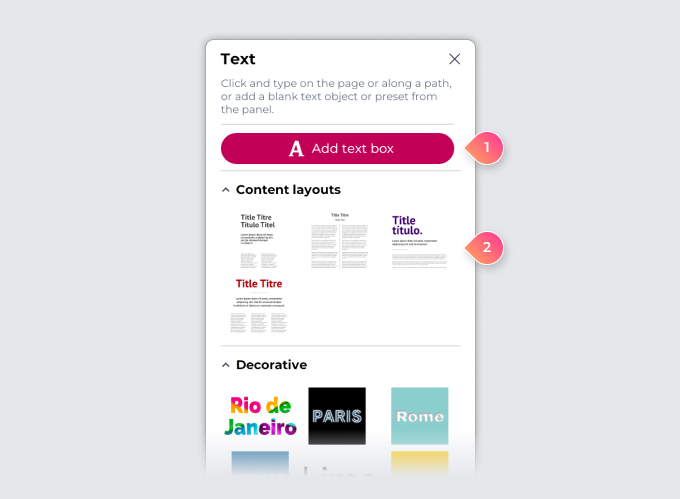
 Add a text box
- In the toolbox, select the Text tool
 .
. - Do one of the following:
- Click in the project space to place a text box at a specific location, and type.
- Drag in the project space to create a text box with a custom width, and type.
- In the Text panel, select Add text box to place a text box at the center of the screen with a default width, and type.
Add a text preset
- In the toolbox, select the Text tool .
- In the Text panel, select a preset.
The preset is added to the active page in your project.
Use the collapse and expand icons to simplify browsing preset categories. You can also use the Text panel scroll bar to navigate through them.
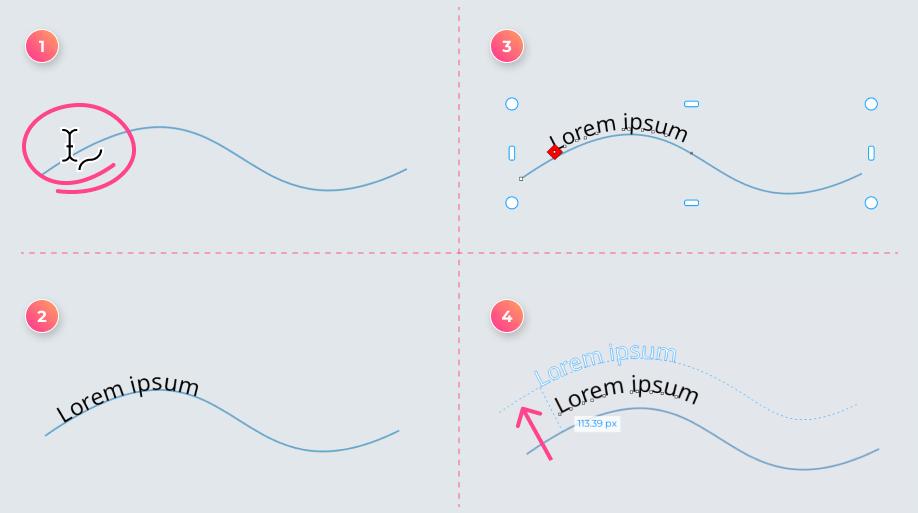 Add a text along a path
- In the toolbox, select the Text tool .
- Hover over a path until the cursor changes to
 , click where you want to add the text, and type.
You can reposition text on a path by clicking the text object and dragging the red node
 that appears. You can move text along the path, move it to the other side of the path, or offset it from the path.